
User guide

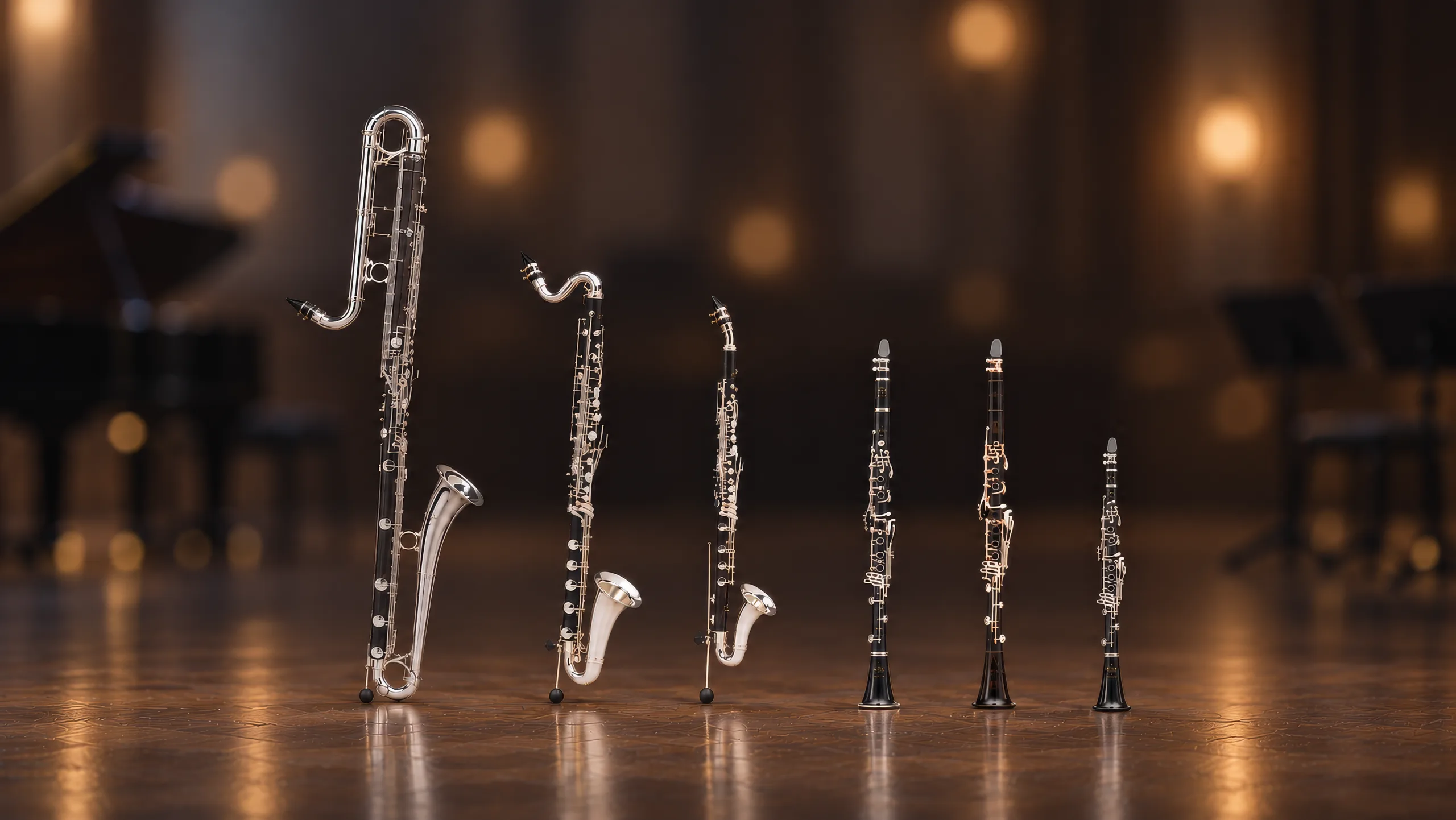
Our 2nd library in the VWinds series includes 8 individual Clarinets: 2 Bbs, 2 Basses, 1 Contrabass, 1 Eb, 1 A and a Basset Horn
Overview
SAMPLING MEETS MODELING, AGAIN & AGAIN
Free for existing users of V1, VWinds Clarinets V2 builds on the solid foundations of the first version, with huge improvements across the board. We went back to the sample level and redesigned everything from the ground up, improving the tone, realism, depth and expressivity of the sound, as well as adding a wealth of new features! V2 Clarinets is our first library to feature a playable slow glissando, which is as easy to perform live as it is when programming with the mouse.
Other new features include a brand new virtual space, based on the award-winning acoustics of the Stoller Hall, control over the note releases, new updates to the vibrato engine, and many others! We've also included brand new Presets, in the same format as the update to the Double Reeds library, which will help speed up workflow. These Presets are designed for various set-ups, such as 'Symphony Orchestra', 'Close & Dry', and even options like 'Woodwind Ensemble' which will match up with other VWinds libraries.
Even with the v2 additions, our library remains incredibly compact, weighing in at only 1.1Gb download size, whilst still delivering the same responsiveness, playability and realism as all other VSeries libraries.
Like the rest of the VSeries, our core goal was to make these instruments easy to use right out of the box, without the need for key switches or multiple CCs, and controllable with just the air flow. For this library we went as far as to improve the airflow control itself, in what we believe was a world first in any sample library. We examined in detail the link between air and pitch, and incorporated our findings into this library. The result is an added layer of realism, which will be heard and identified by those with trained ears, but 'felt' by everyone.
We left them very dry intentionally so that you can hear every detail.
Interface
Features
8-Instrument Bundle
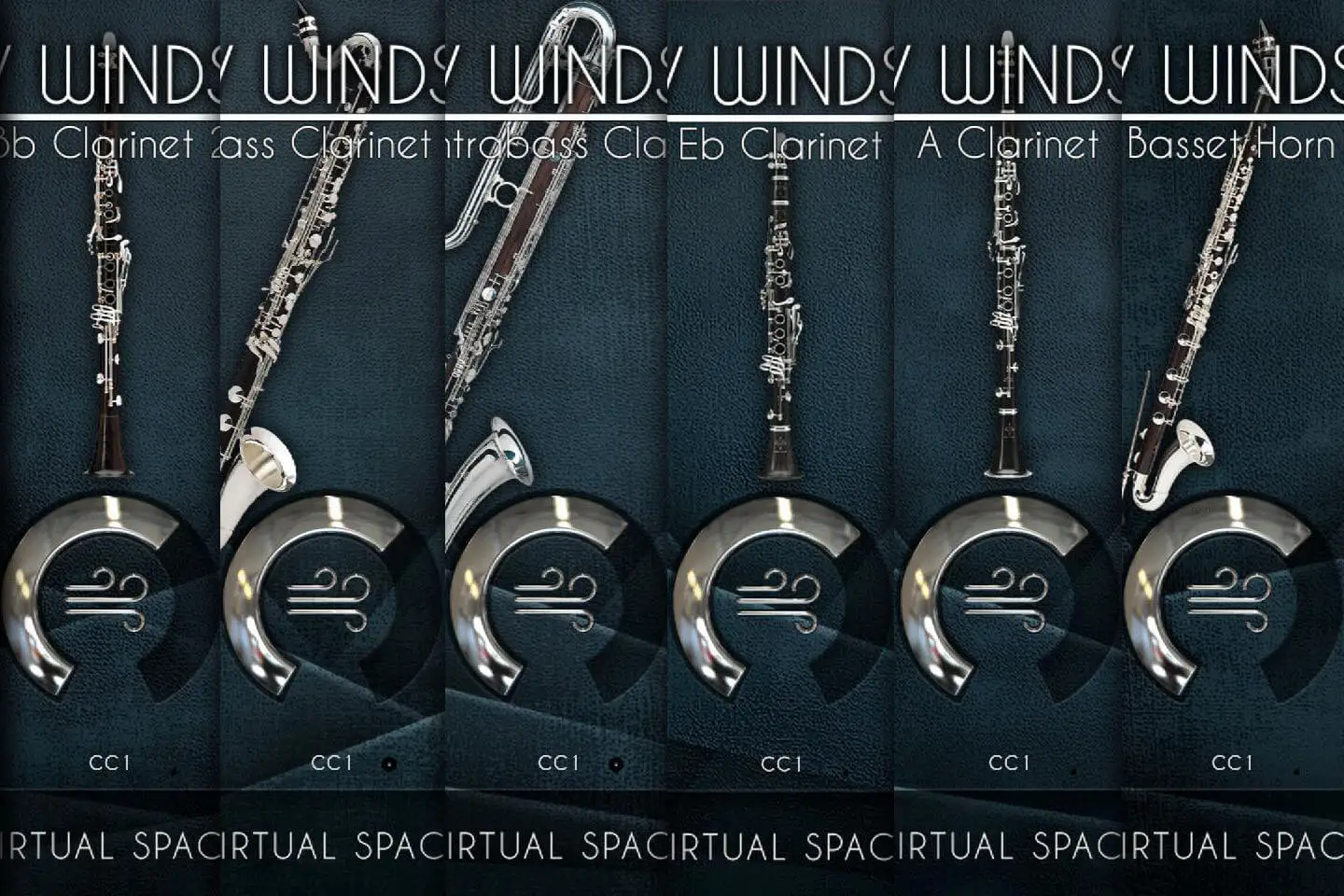
VWinds Clarinets contains 8 instruments:
2 B-flat clarinets, 2 Bass clarinets, 1 E-flat clarinet, 1 A clarinet, 1 Basset Horn and 1 Contrabass clarinet.
We recorded two of the more commonly used clarinets (B-flat and Bass) to offer a variety of tone and colour, but the E-flat, A, and even the Basset Horn could be employed as a 'general clarinet' sound for certain projects. If there's one clarinet in particular you liked the sound of, and would like to purchase it individually, the links below will direct you to the individual instrument page:
VWinds Bb Clarinet - VWinds A Clarinet - VWinds Eb Clarinet - VWinds basset Horn - VWinds Bass Clarinet - VWinds Contrabass Clarinet
The H.A.T. - Airflow Control
Thanks to our proprietary H.A.T. (Harmonic Alignment Technology), VWinds Clarinets is not just another heavily multisampled instrument - you can play articulations yourself just like a live player would, using only a MIDI controller (or even by simply drawing the automation in!). There are no complicated keyswitches involved to play staccatos or fast legatos or anything else - it's just a case of playing it live as you think it should sound.
Simply play a note, adjust the air flow, and that's it! Vibrato is automated by default, but this can be customized or even just controlled manually.
How does sampling + modeling work, and why does it sound so natural? Read sampled, modeled or hybrid.
More about this
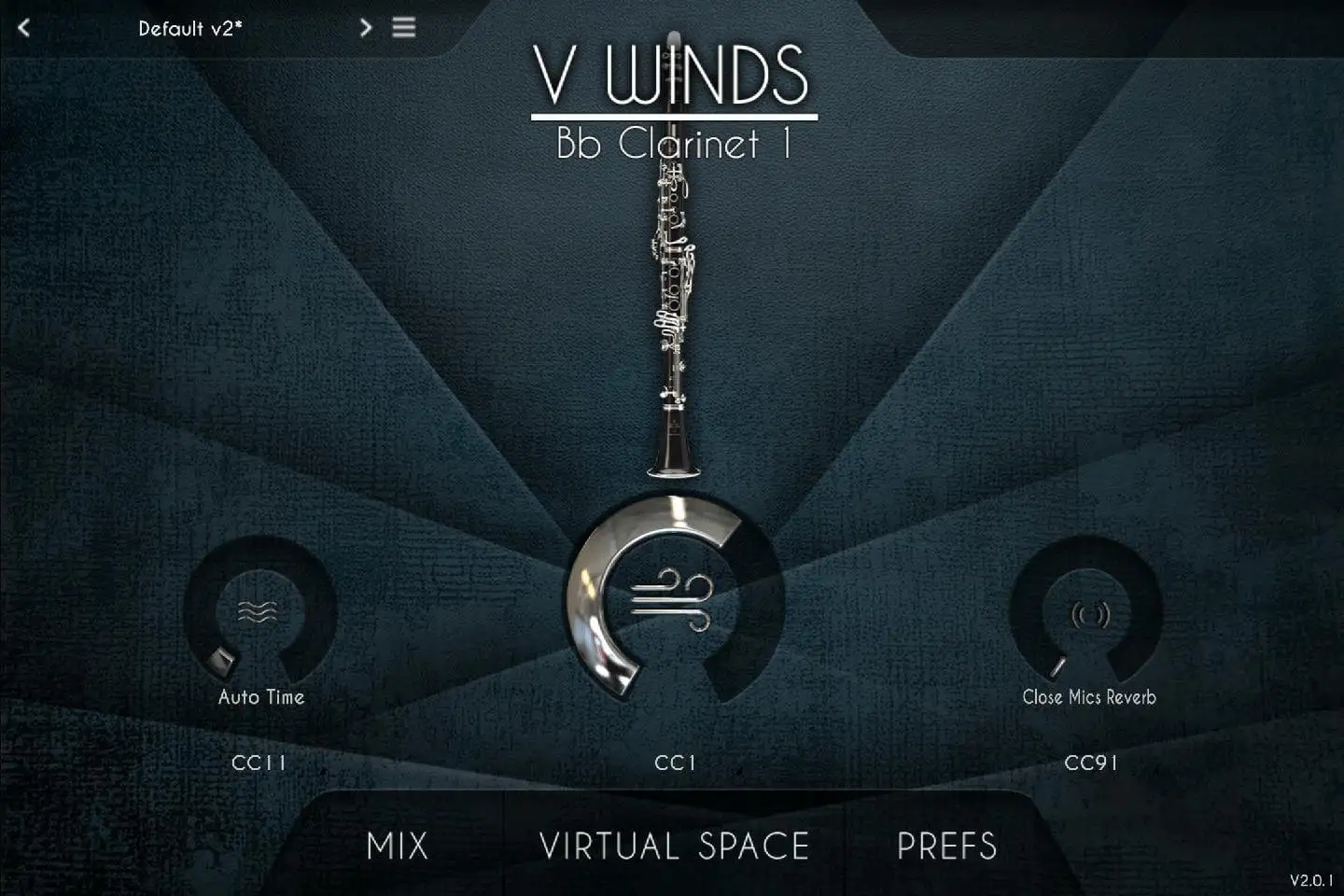
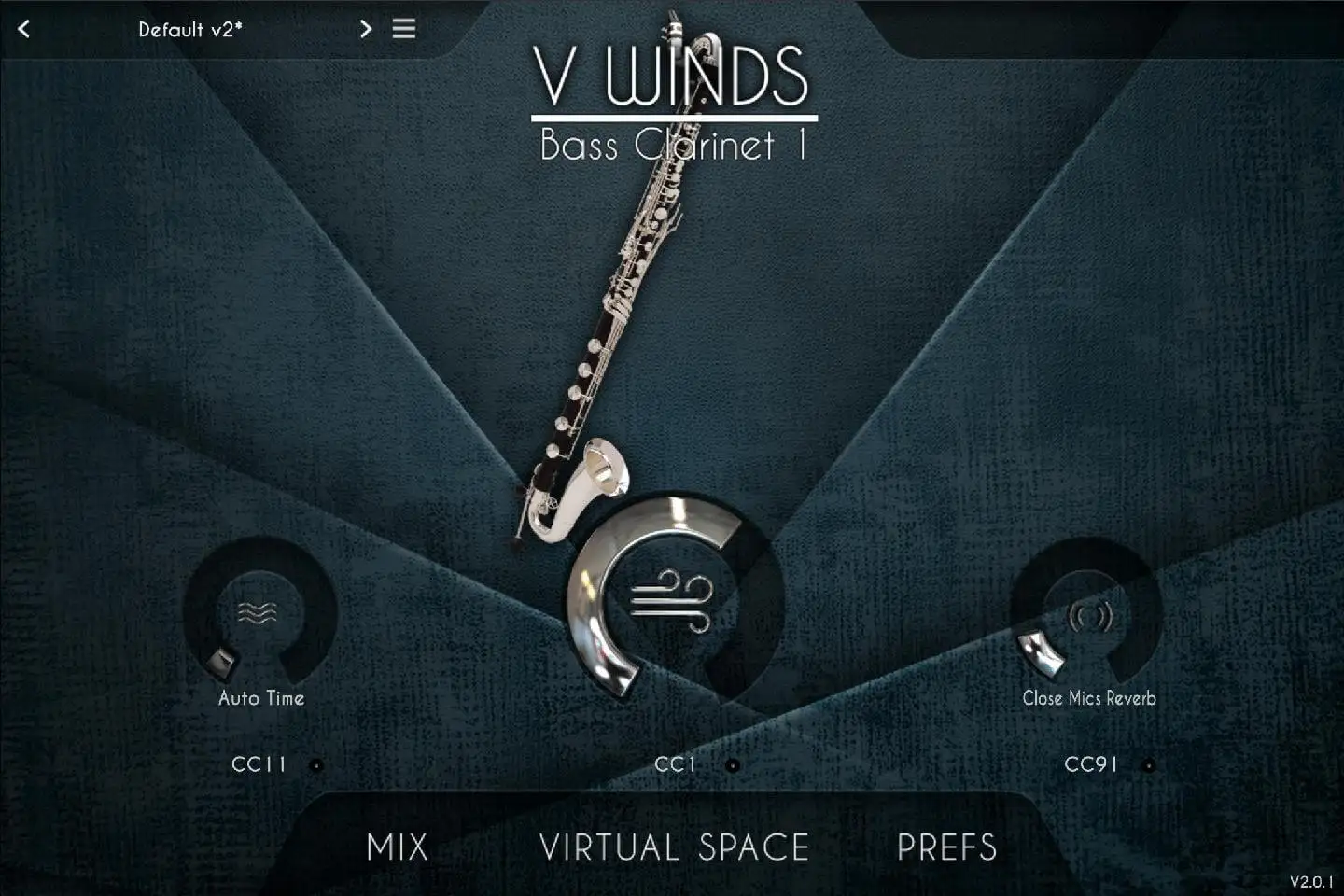
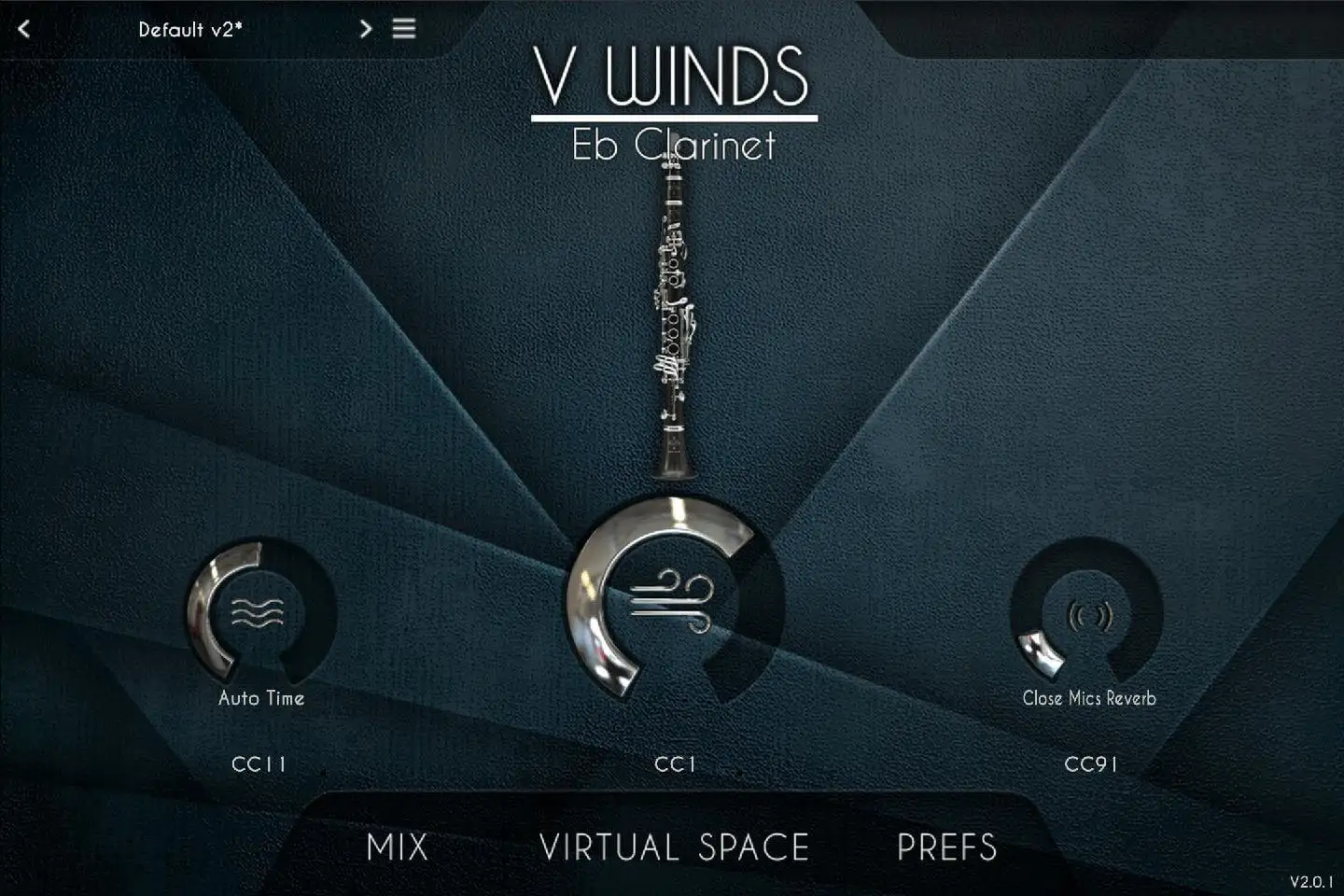
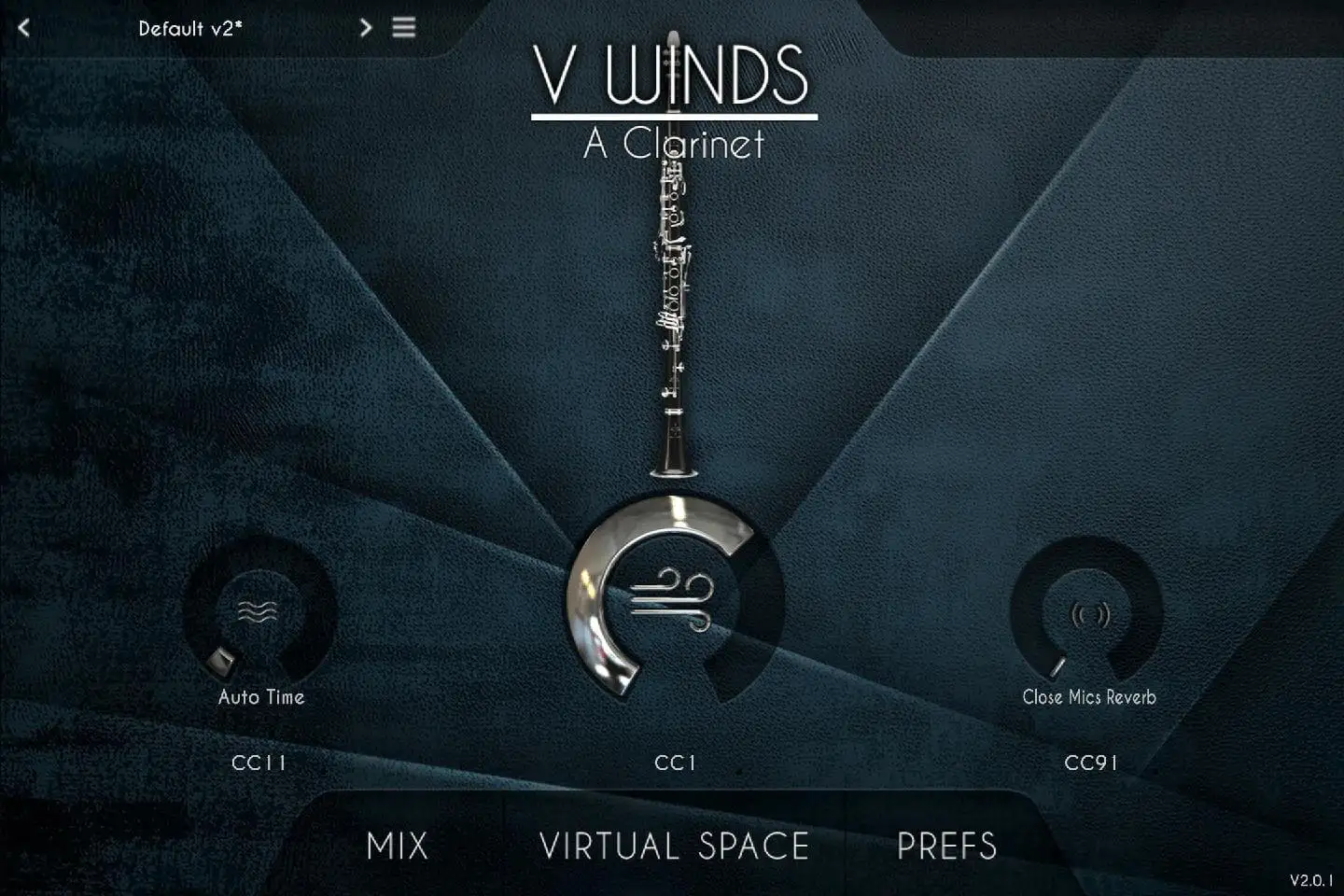
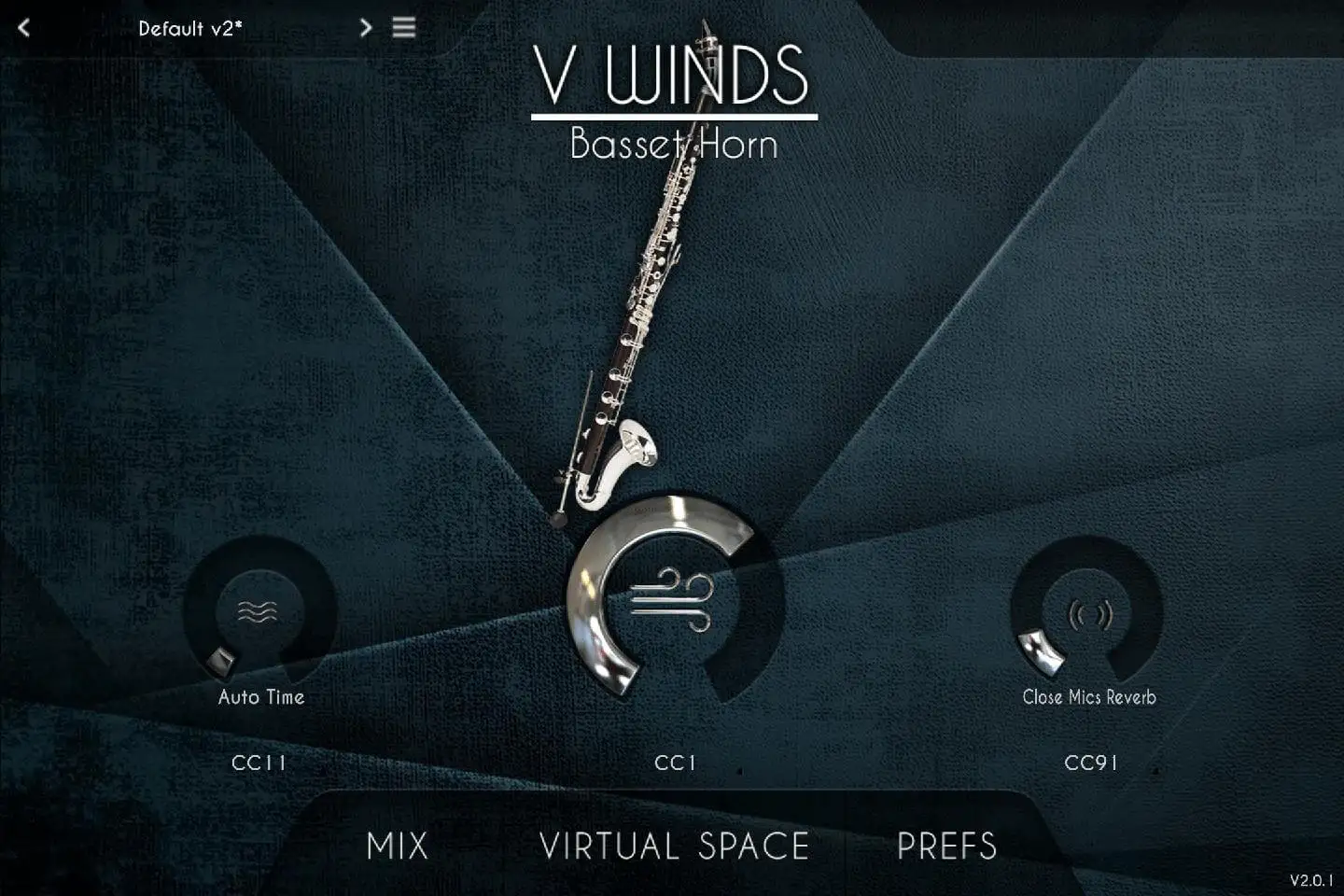
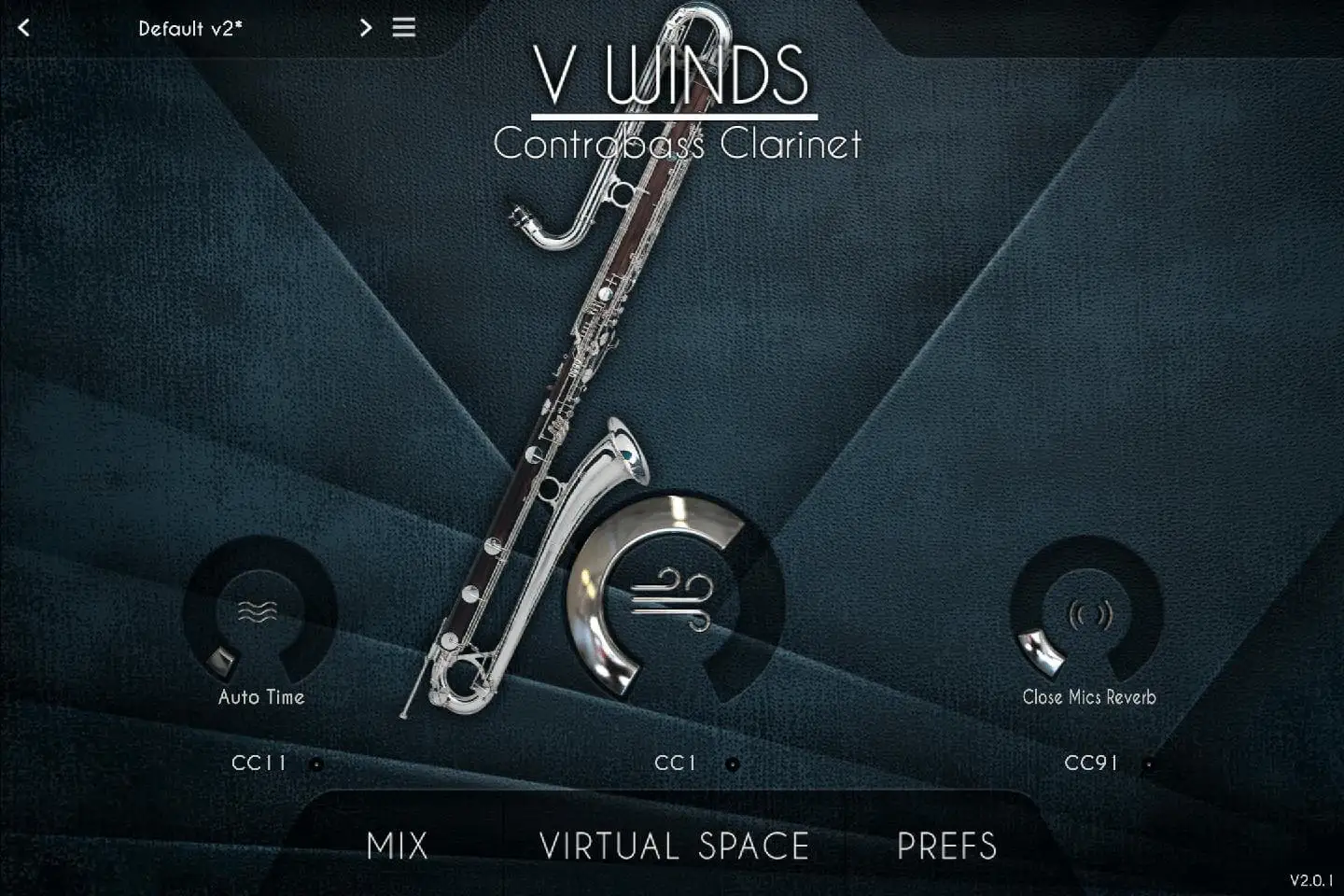
Air flow is controlled by the middle dial on the front interface.
When set to 0, there will be no sound coming out, just as there wouldn’t be any sound if you didn't blow any air into an instrument.
You can of course control this value with different CCs. We set it to the modulation wheel by default because it's available on almost every digital keyboard, but you can use anything else you like, for example CC2, which is the default for most breath controllers.
All you need to do is click on the small dot next to the CC number and move a dial/wheel/fader/etc on your controller.
As mentioned above, vibrato can be controlled with the air flow as well. When you move the air controller up and down, it will start adding slight pitch variation to the sound. To enable/disable this, go into the PREFS panel and change the "allow vibrato with air flow" value.
In some rare cases, and when using MIDI files imported from notation software such as Sibelius or Dorico, you only get velocities, so at the bottom of the CC list, we added the possibility to control the air flow with the incoming velocity - simply select ""VEL"" for this..
Lastly, if you want to use the pitch bend as the input CC, you can do so by choosing "P. BEND" from the list.
Authentic Vibrato
We carefully measured the different parameters that change when a player uses vibrato, and we combined everything into a hyper-realistic and extremely adjustable vibrato, specifically tailored for each instrument.
There are multiple ways to control the vibrato: automatic, automatic depending on time, and completely manually. Vibrato can also be replicated to an extent by using just the air flow, in order to replicate the diaphragm movement of a live musician.
More about this
Vibrato is controlled with the left dial on the main panel.
Directly below the dial, there is a small menu with 3 options:
1- Auto: this enables automatic vibrato and the dial will control how much vibrato is added to the sound.
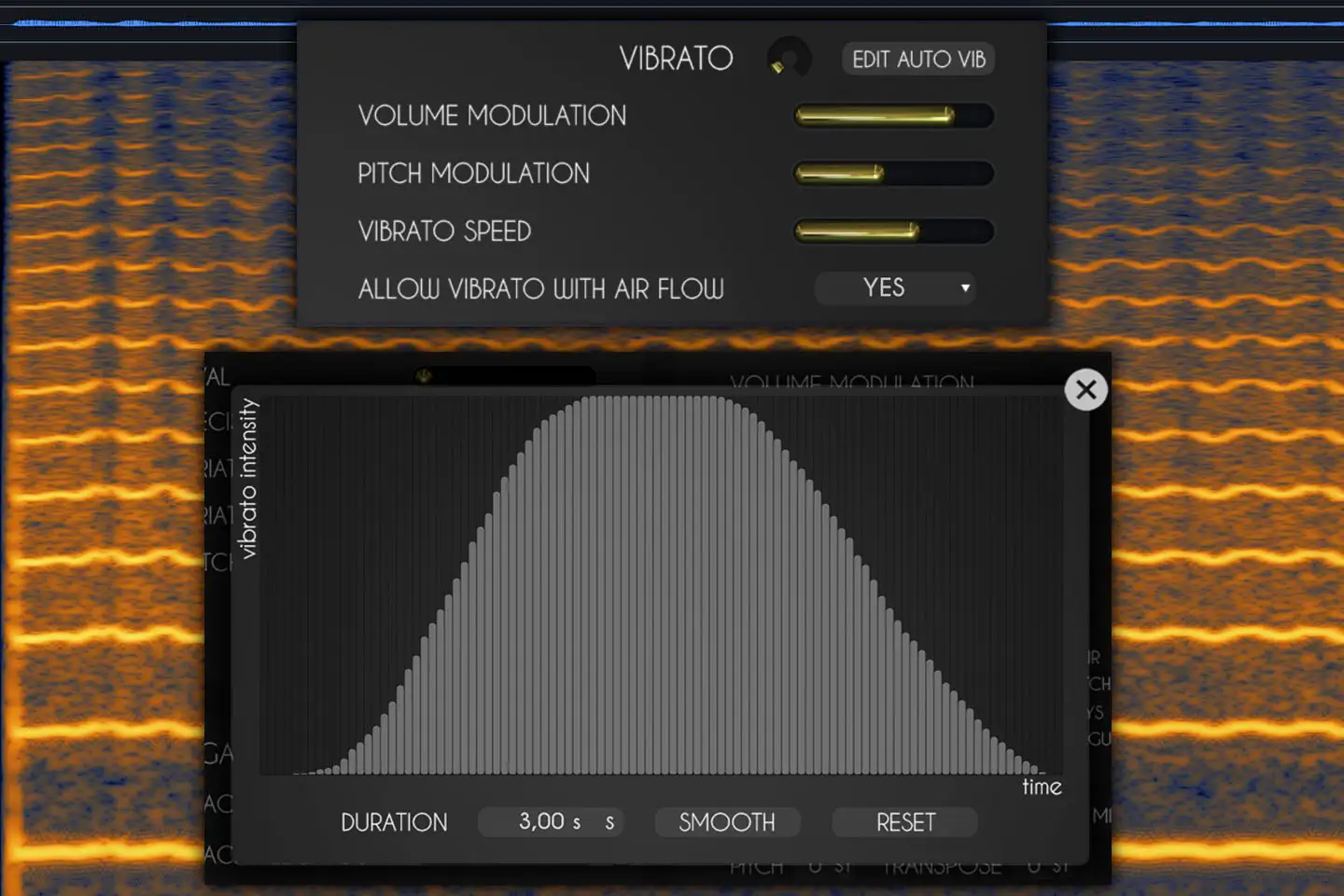
2- Auto time: This is similar to Auto mode, but a time envelope will control the amount of vibrato. You can edit this envelope in the preferences by clicking on "edit auto vib". This opens a small panel that displays a table and lets you control its duration and intensity.
3- Manual: This is for advanced use and offers continuous control over vibrato. In reality, a woodwind player changes the shape or position of their mouth on the mouthpiece to change the pitch up and down. In this mode, the neutral position (with no pitch change) is the middle value of the knob and a value of 0.5 (and CC at value 64). Values below 0.5 will result in a lower pitch and values above 0.5 will result in a higher pitch. This is very useful for creating vibrato that doesn't have a fixed speed.
As mentioned above, there is a fourth way to create vibrato only with the air flow control. The "allow vibrato with air flow" setting has to be switched on in the preferences, and you can control vibrato by performing a fast up and down variation in whatever you're using to control the air flow.
In the preferences, you have access to a number of ways to control vibrato (this affects all 4 modes mentioned above).
1- There is a small dial that controls the overall amount of vibrato. This can be set to some very high values that will sound very unnatural to some, but sometimes necessary for those using dedicated wind controllers that might have a narrow CC range.
2- You can change the amount of volume modulation: vibrato isn't just a change in pitch, it's also timbre and volume changes; you can control exactly how much of this you want.
3- You can of course change the amount of pitch modulation.
4- And the v2 update gives the option to change the amount of timbre modulation - this is a simulation of the frequency changes which happen during vibrato.
Some controllers like the EWI use pitch bend as the vibrato source, so we added the P. Bend option to the bottom of the CC list in case you want to use it for vibrato and not bends.
Legato Transitions
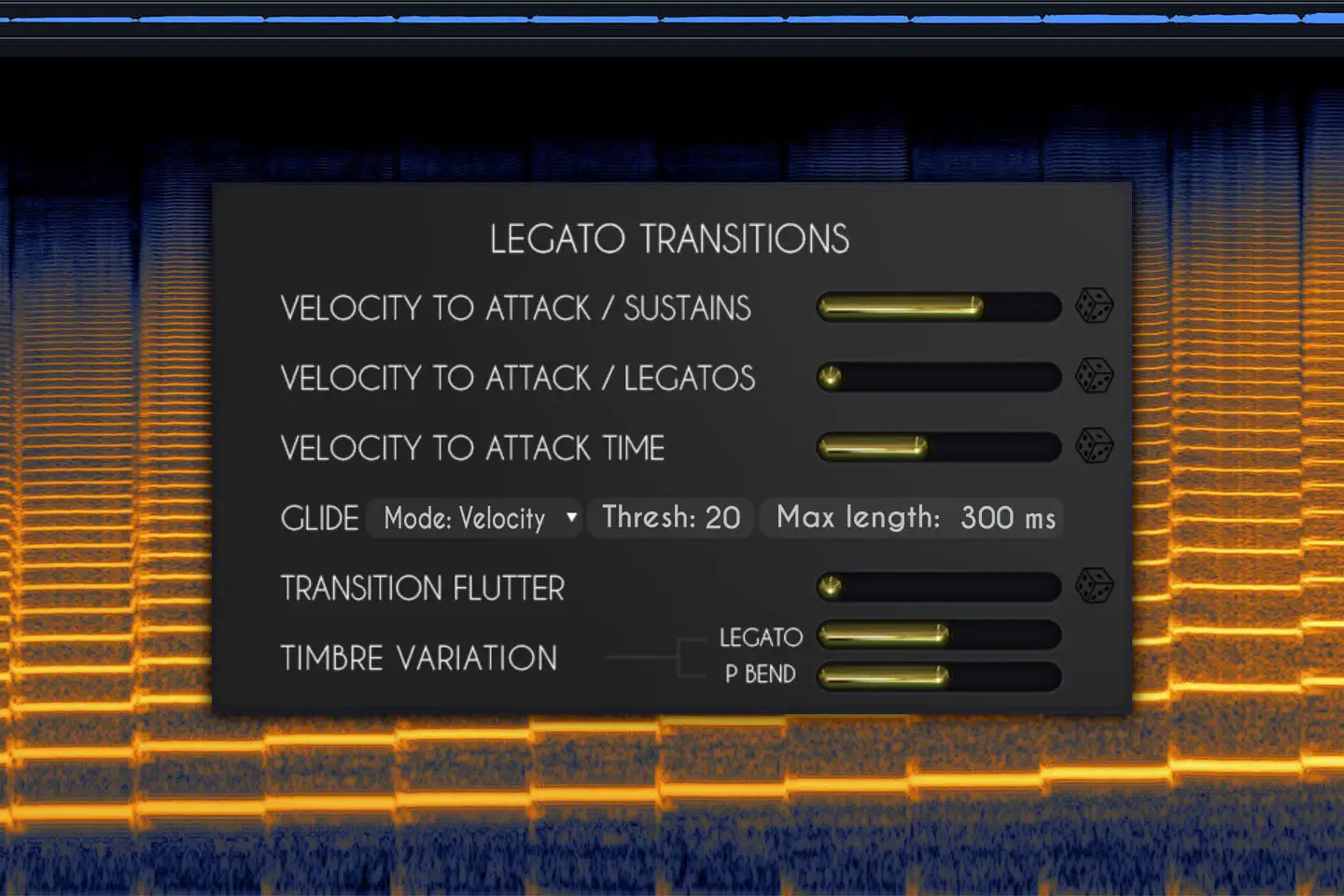
We spent considerable time and effort carefully extracting every minor detail of recorded transitions in order to give a variety of customizable legato transitions, and to help make the Clarinets as indistinguishable as possible from a live performance.
These transitions range from lightning-fast changes to extremely slow bends, with and without extra attack. We made sure to cover all of this, and you’ll see that this is all controllable in the interface. The legato behavior can even be randomized to help give a more human-like performance.
The legato transitions are based on real recorded transitions, but if you prefer a synthetic sound for particular projects, you have the option to choose fully-modelled transitions as well.
More about this
When you play a legato on the keyboard (when you overlap two notes), our engine will automatically stop the first note and play a legato instead of a normal sustain.
This is exactly what happens on a real woodwind instrument when the air flow is continuous while the player changes the note. There are a number of ways to play these legatos and we gave you access to everything so that it can be controlled in real time.
1- Velocity to attack / sustains : This controls the way new sustained notes are played, for example if the air flow is at a CC value of 75 and you play a note at velocity 20, our engine will ramp the air flow from 20 to 75 and thus create a quick volume raise. And vice versa - if the velocity is above the air flow value, it will create a quick attack. The duration of this ramp is controlled by the velocity to attack time value.
2- Velocity to attack / legatos : This controls how legato notes are played, and the procedure is identical to that for sustains, but for legatos it covers the joins between different notes rather than sustained notes on their own. This feature is very useful on woodwind instruments as many players play legato notes with a slight crescendo between notes, so to replicate this, all you need to do is play every new legato note at a low velocity.
Glides are very commonly heard in clarinet instruments (one very famous example springs to mind), so we wanted to include them as an option, triggered by a number of different methods listed below:
1- Mode: velocity. In this mode, any velocity below the threshold value will trigger a glide and its duration will depend on how low the velocity is. For example if the velocity is at 20, it will be a fast glide (comparable to a legato time), but a velocity of 1 will trigger a slow glide at the duration of the max length value you set.
2- Mode: CC. In this mode, you can control the glide duration with a MIDI CC, again it will go from the Max length value when the CC is at value 1 to standard short legatos when the CC is set to value 120 and above.
3- Mode: Manual. In this mode, the glide value is fixed and the glide speed can go from 50ms to 3s. We added a randomize time value to give it a natural feel, but bear in mind that when increasing the randomize value, the engine can technically receive a value below 50ms in which case it will play a slow legato.
4- In addition to these, you can glide using the pitch bend, and the max pitch bend value will determine the bend range. The quality of that bend will depend on the "use advanced pitch bend value". Keep in mind that that using this option will take up more CPU, even when you’re not actually playing pitch bends.
When a woodwind instrument player plays any note, if they are very precise, they will directly land almost exactly on the correct pitch and create a very precise attack, but it is often also "missed" on purpose and a quick flutter attack then happens. You can use the Transition flutter value to control how much of this you want. Right click on this slider (just like for any other slider) to choose to control it with a MIDI CC or a host automation.
Another very important aspect of legatos is what happens during the transition itself. On reed instruments, a timbre variation happens when the player moves their jaw while playing (putting more or less pressure on the reed). This effect can be noticed on three occasions here: while playing legatos, when playing a vibrato or when using the pitch bend. You can control how much of that effect you want for legatos and pitch bends; the part for the vibrato is fixed.
Multi-Microphone Recording
Recording a woodwind instrument can be done in various ways and at different positions. We used 3 different microphone positions to offer a variety of sounds whilst maintaining the crystalline sound of our VSeries instruments.
Various microphone positions can produce even better results when using the "virtual space”, detailed below, where there are 4 options for microphone configurations.
You can also apply reverb and EQ within the interface to prepare the sound to your taste before even starting with external plug-ins.
More about this
MIX Tab
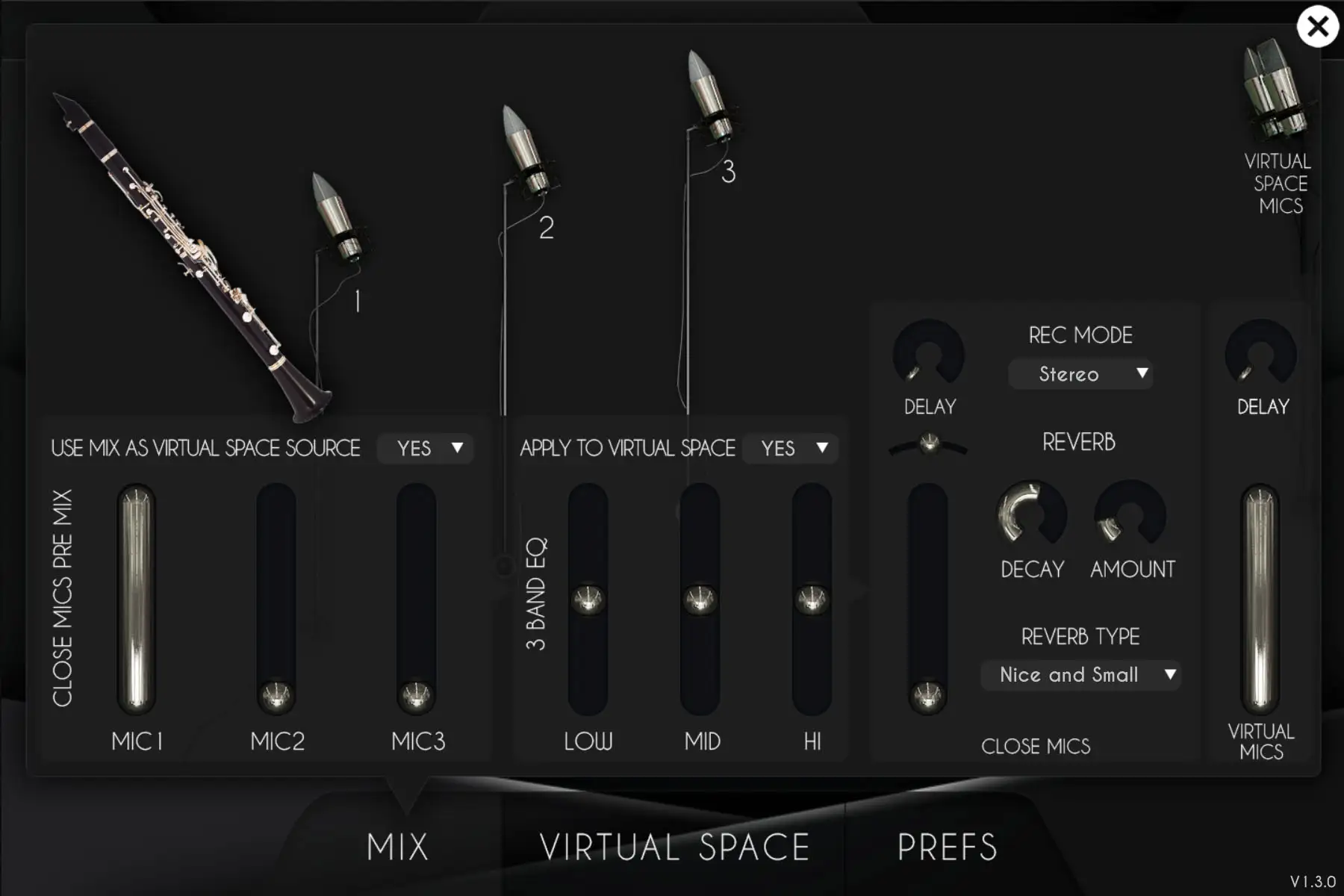
We recorded each of our instruments with 3 different microphones at 3 different positions to capture their unique sounds - you can mix these however you like. At the top you can also change the routing, as explained below; we created the Virtual Space, which places the instrument in a virtual environment, which is technically a virtual room mic pair that you can move around. Here, you can choose if you want the source for the virtual space to be just the close mic or a mix of the 3.
We also added a 3 band EQ, which you can also decide to apply to the source sound for the virtual space.
You can mix the result of the 4 microphones and the virtual mics, and we added a pan and delay for each to deal with phase problems that always occur when multiple microphones are involved.
You can also add an impulse response reverb to the whole mix, control its decay and how much is sent from the close microphones and from the virtual space. The amount on the mix panel is the same as on the front interface.
Virtual Space
The virtual space perfectly reproduces what a real recording of an ensemble would be, using convolution.
When recording an orchestra, a pair of microphones is usually placed in front of the musicians and they naturally take position in the stereo field depending on where they are in the room.
The Virtual Space does exactly the same thing: you can place the musician wherever you like on a big stage.
When using this with multiple tracks, you immediately have the feeling of being in front of a real woodwind section.
Our default space for V2 is based on recordings from the award-winning Stoller Hall.
More about this
Virtual Space tab
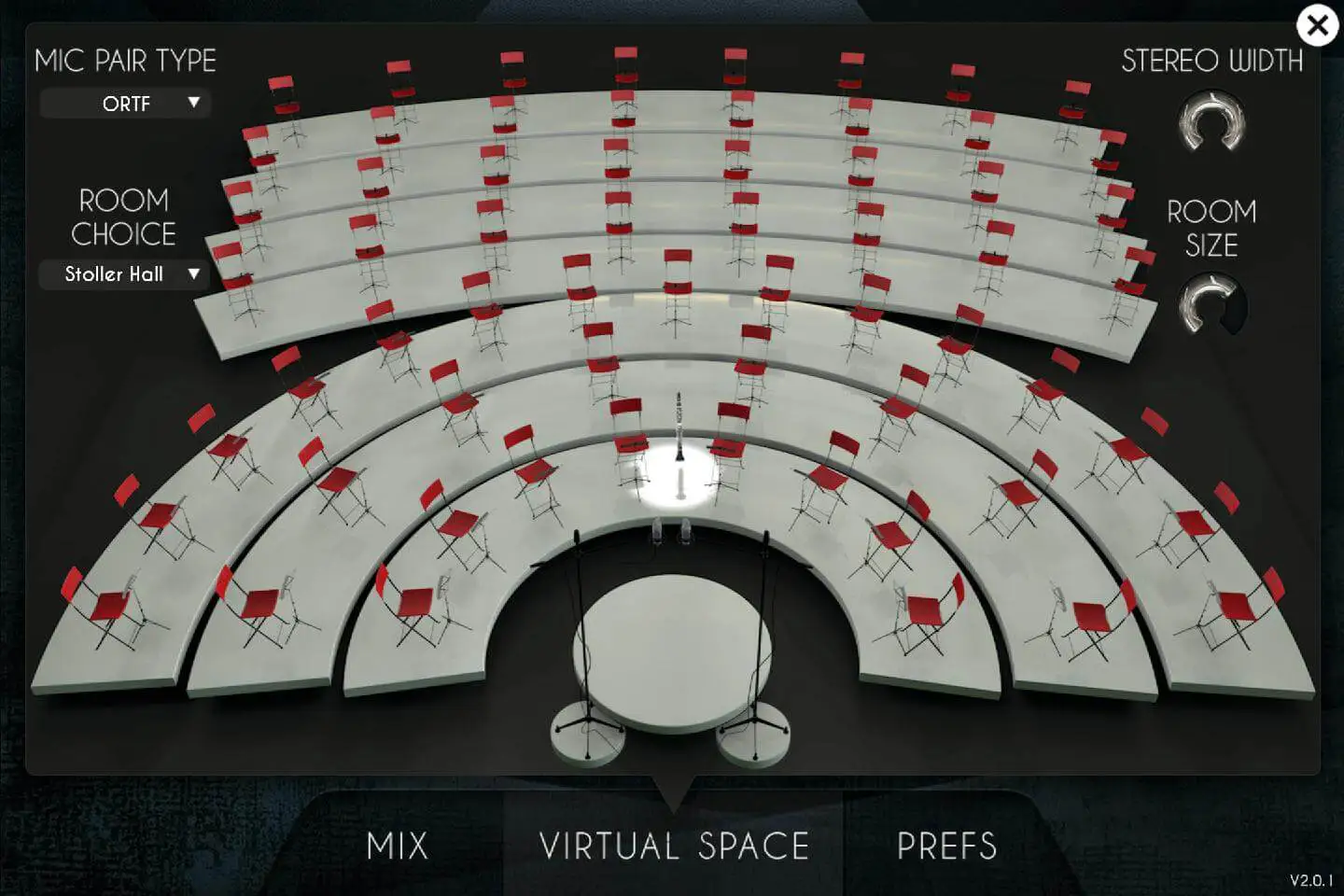
This Virtual space in the VWinds is different from the one in VHorns Brass section and Saxophones, and is based on a traditional orchestral seating plan, with around 80 different spots in a naturally reverberant room.
Using only panning to place elements in the stereo field does not sound realistic as there is so much information left out, so we recreated a whole room placement simulation, based on impulse responses, where you can set the position of the instrument in the actual room.
As setting up an ensemble recording can be done in many different ways, regarding both musician placement and microphone pair selection, we included as many options as possible.
You have access to 80 positions divided into 7 rows, and you can select which microphone configuration you would like to use (ORTF, AB, AB Wide and XY), as well as controlling the stereo width for a narrow or wide section and the room size for more or less reverberation time.
Advanced Editing
There are an endless number of ways to play a woodwind instrument, and we had to make a careful choice on the default settings based on our interaction with world-class players, but many of the options can be customized to your taste.
Furthermore, most settings can be randomized for more human-like and unpredictable results.
More about this
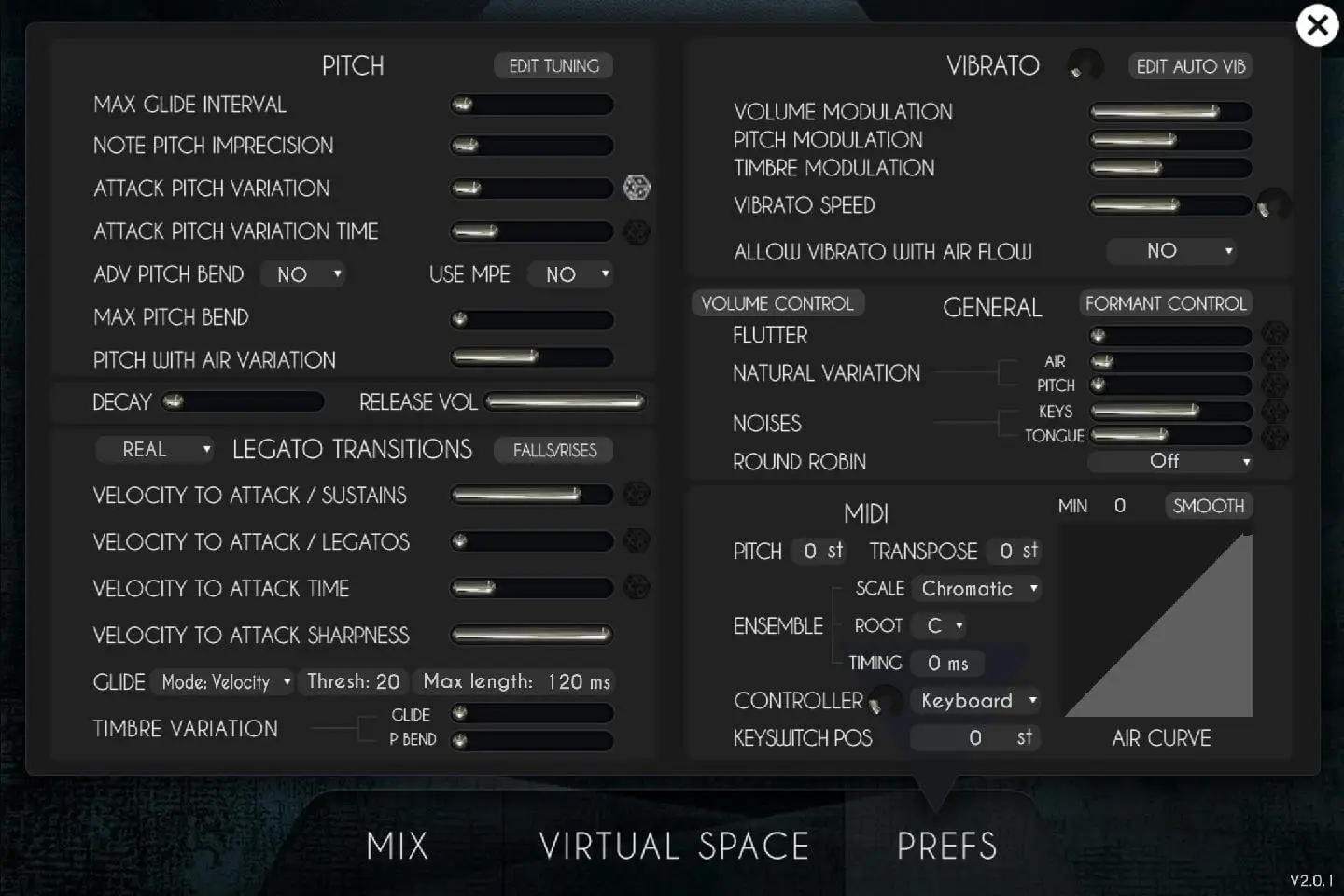
We have already detailed many features above, and here are the remaining few. Please note that all of the features in the preference tab that have a small die next to them which turns on randomization for an even more human-like performance. Randomize means that the value for that setting will be randomized for each new note, between the minimum value and the value you set.
Firstly, at the top, you will see a tuning button that will open a panel allowing you to tune each note to your liking. This is very useful for performing music not written for standard tuning systems, or for music that doesn’t use traditional Western classical scales.
Pitch section:
1- The max glide interval controls the maximum interval that you are able to create a continuous glide between. On a trombone for example, the maximum possible glide is from position 7 to position 1, so 6 semitones. We allow for more than 6, but to play something natural, it's better to lower that value as in reality most players will glide a maximum of 3 or 4 semitones and "cheat" the rest. Above that value, our engine will "cheat" as well and skip some notes while still ending up on the target note.
2- The note pitch imprecision is exactly what it says - it will make the notes sound very slightly out of tune, completely at random, between 0 and the value you set. A value of 100% will randomize +/-1 semitone.
3- The attack pitch variation is a bit different, it is technically a fast bend ramp that is almost always present in live performances. It is more or less super-human to play every single note perfectly in tune from the first attack, so in order to create a more realistic sound, this is set slightly above 0 by default. Increasing the value will control how much bend you want (in other words; how far away the sound will be from the note you’re playing) and the attack pitch variaton time will decide how quick that ramp is.
4- There are two pitch bend modes, a simple one that will bend up and down by pitching the note currently being played, and an advanced, more realistic one, that will transition to another note in real time. You can select one or the other using the use advanced pitch bend menu. Just remember that the advanced mode will use more CPU than the regular one.
5- The Max pitch bend value controls the amplitude of the pitch bend. It ranges from 1 to 3 semitones.
6- The VWinds are MPE enabled, so you can simply turn the feature on and off here and enjoy playing it on any MPE-enabled hardware. When enabled, the advanced pitch bend and max pitch bend will be disabled.
7- You can click on the edit tuning button to get access to a microtuning panel which allows you to control the pitch of each note independently.
General section:
1- The growl/flutter value controls how much growl/flutter effect is added to the sound. A MIDI controller can be assigned to control this in real time.
2- The natural variation air and pitch values control that very quick and almost undetectable variation that even the best woodwind players can't avoid when they play. Since the air flow should never be always perfectly constant, the timbre and pitch vary all the time and you can control how much of each you want. By default, it is set to 100% which is representative of a very good player with the least variation possible and you can go above that to make the playing more natural.
3- The keys noises let you control how much noise you hear from the individual keys being pressed on the instrument.
4- The tongue noises lets you control the volume of the small noise produced by the tongue as it blocks the air flow when a note is stopped.
5- The round robin menu lets you control if you want no round robin, a 3x round robin alternating on adjacent notes all the time or a smart round robin which only alternates in fast passages.
6- You can click on the volume control panel which allows you to control the volume of each note independently.
7- You can click on the Formant control button to display the formant control panel. We'll explain more about this below, but this gives you the ability to control the overall timbre of the instrument by changing the amount of each harmonic in the sound.
MIDI section
1- Pitch: You can pitch the whole instrument up or down up to +-12semitones. This affects the tone of the instruments and can be useful to cover other instruments that have a different range.
2- TRANSPOSE: This is just a MIDI transposing tool, so for example, a value of 2 semitones will play a D instead of a C. If you use the pitch and transpose at the same time, but opposite values, you will hear the correct note and will only change the timbre and range.
3- The Ensemble will be detailed in the ensemble section below.
4- The type of controller you use can induce a few internal changes. The EWI for example requires some tweaks to play legatos as it does not overlap MIDI notes by default. You can select the type of controller you use from the list here.
5- Next to the controller selection, there is a small dial that controls the reactivity of the controller. On some keyboards, for example, the mod wheel can be non-continuous and have small gaps that lead to unnatural-sounding variations. To fix this, just increase the value on the dial. If you use a breath or wind controller though, make sure this value is set to 0 - otherwise it will be hard to get very sharp attacks. Selecting the right controller will take care of this value change for you.
6- You can change the position on the keyboard of the few keyswitches we use. Here is what the keyswitches do:
- C1 will play a key noise. There is already an automatic key sound with legatos and new notes, but sometimes players press some keys in between or before phrases. The key noise volume responds to velocity.
- C#1 will trigger a fall from any note you are playing.
- D#1 will trigger a rise from any note you are playing.
- E1 will repeat the note you are currently playing, this is known as "static tonguing", or the note that has previously been played, allowing for easy multi-tongued notes
- F1 will produce a bend half a semitone downwards.
- F#1 will produce a bend half a semitone upwards.
- A1 will play a ‘breath' sound. Real players usually take a deep breath before a long phrase, or when there is enough of a gap between phrases. The volume of the breath sound responds to velocity.
The Legato transitions section is covered above.
Formant control / Microtuning / Volume adjustment
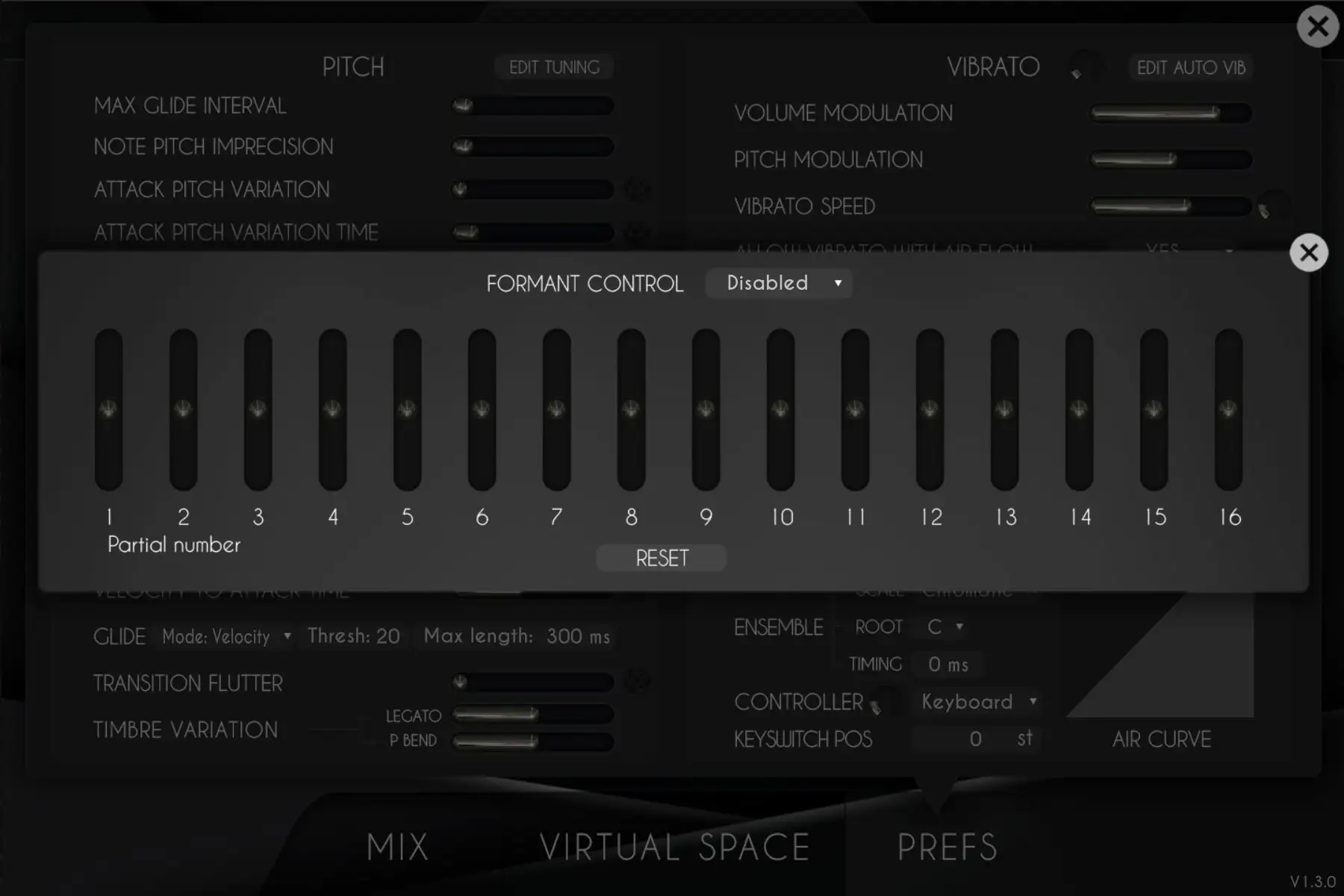
VWinds is already highly customizable, but to add even more variety, each harmonic of the sound can be adjusted.
For even more versatility, the pitch and volume of every note is adjustable, meaning the instrument can be completely tailored to your needs.
More about this
The Formant control panel can be opened from the preferences in the general section.
Once you enable it, the formant control allows you to adjust the volume of each of the first 16 harmonics to completely reshape the sound. As an example, you can try to raise all even harmonics and lower odd harmonics on the clarinet to get closer to something like an oboe.
Activating this panel uses a bit more CPU, not a lot, but if you are low on resources, be sure to keep this panel disabled.
You can also now control the pitch of every note to play microtonal scales. To do that, simply click on edit tuning in the preferences and adjust the tuning of each note (in cents).
Depending on the instrument/musician, specific notes can sometimes sound louder or quieter than others, so we added a panel to give full control over that. Open it using the volume control button in the preferences.
All of these adjustments are of course are saved with presets.
Keyboard, Breath Controller, Wind Controller and MPE support
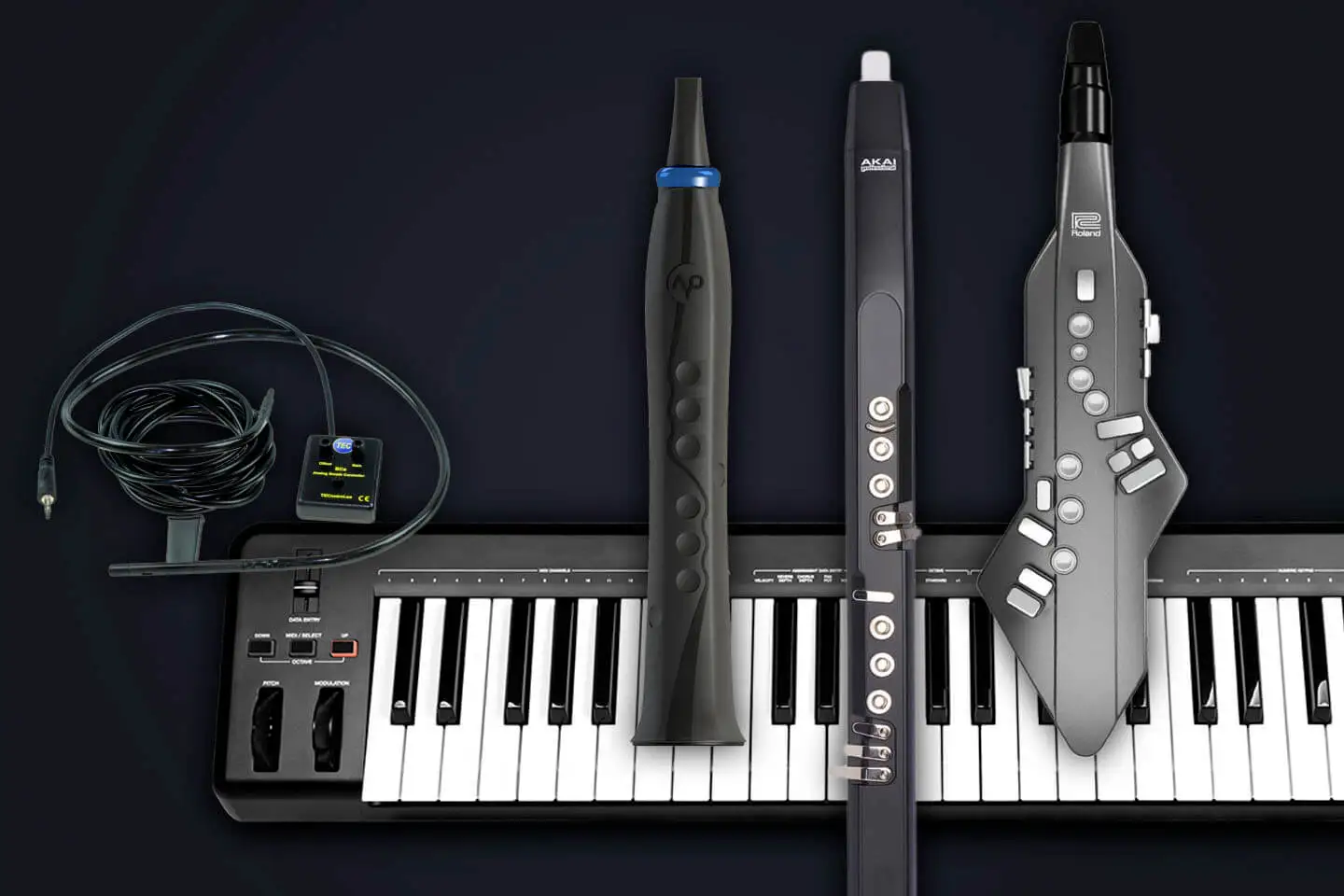
VWinds can be played using a keyboard by selecting the notes on the keyboard and controlling the air flow with a MIDI controller, such as a modulation wheel or a breath controller.
You can also use a wind controller like an EWI, an Aerophone, a Sylphyo or any other brand - in order to do this the appropriate controller must be selected from the controller menu in the MIDI section.
Ensemble

If multiple instruments are loaded at the same time, their notes will be performed at exactly at the same time.
We added some smart features that can change the timbre of the instruments, transpose everything by a fixed interval and also act on the MIDI performance.
For example, you can have all 8 instruments with a different transposition value playing the same C minor scale, so no matter what you play on the keyboard, it will sound in key.
More about this
Playing ensembles with VWinds is relatively straightforward, as you can see in the overview video. You can adjust a few things in the MIDI tab.
1- The Transpose value can be changed to get the desired interval change.
2- You can then select a scale and root on which the instrument will be forced to play, no matter what you play on your keyboard. If you select C Major, then whatever you play on your keyboard will stay in C Major, even when using the transpose value.
3- The timing value will create a randomized time delay each time a new note is played, this way when you play a note on the keyboard, not all instruments will start at the same exact time, just like a section of musicians would do in real life, no matter how good they are.
- Put the natural variation value somewhere between 105-115% (air and pitch) and randomize them.
- Consider using the round robin feature if you are using the same instrument twice
- To add some variation to the velocities, select the dice next to the velocity to attack for sustain, legatos and time.
- Set a value for the flutter transition and randomize it as well.
- The most important part will be the pitch aspects, so increase the note pitch imprecision, as well as the pitch variation and pitch variation time, and randomize them.
Once all this is set, it should have plenty of variation, but a good solution to make it even more convincing is to go a step further and just have two different MIDI files with humanized note positions as well as slightly different air flow controls. The best solution would even be to just play the performance twice as it wil introduce all of the necessary variation.
Technical specifications
UVI Player v3.1.15 is required for the library to function properly, the VWinds Clarinets will not work on windows XP, or OSX 10.6, it will not work on a receptor either.
1.5Gb compressed in lossless flac format (190Mb for the A clarinet, 190Mb for the Eb clarinet, 350Mb for both bass clarinets, 190Mb for the basset horn, 400Mb for both Bb clarinets and 170Mb for the contrabass clarinet).
Sample player
VWinds Clarinets plays in UVI Player (formerly UVI Workstation), UVI's free sample player. We provide it with every library you buy, so you don't need an expensive sampler to use our products. It works on Mac (macOS 10.14 or later, Intel or Apple silicon) and Windows (10 or later), standalone or as a plug-in (VST / VST3 / AU / AAX), in 64-bit only. More about it here.
Copy protection
We use the iLok system to protect our products and you can choose to register your license to your computer or to an iLok dongle. If you decide to use an iLok dongle, both V1 and V2 are compatible with our products. You can activate your license on up to 3 computers or iLok dongles at the same time and you can deactivate one and activate another as many times as you want.
Video tutorials
- V2 Overviewyoutu.be/Jum1w8TdwR4
- V2 Overviewyoutu.be/Jum1w8TdwR4
- V1 Overviewyoutu.be/84A8UyR2QMI
- V1 playthroughyoutu.be/N2J640BE0Zc
- Ravel V2 demoyoutu.be/RGPcx-02AYs