
User guide
A-PIAN
A-Pian is an old Gaveau "crapaud" (the smallest size of grand pianos), which gives a very unique sound.
Overview
The A-Pian Grand Piano is an old Gaveau instrument. Gaveau was a French piano manufacturer who established his company in 1847 in Paris and used to be one of the three largest piano makers in France (after Érard and Pleyel).
This particular piano was built in 1960 and is referred to as a "crapaud" ("Petite Grand" in english), - crapauds are even smaller than baby grands (or "quarts de queue" in French).
It has a very unique sound; very bright and full of inharmonicity in the bass due to the short length of the strings.
This library was our very first attempt at finding new ways of sampling a piano - after a few trials we were eventually able to reduce the size without losing the most important features, and this instrument is the result of those efforts.
Features
Default interface
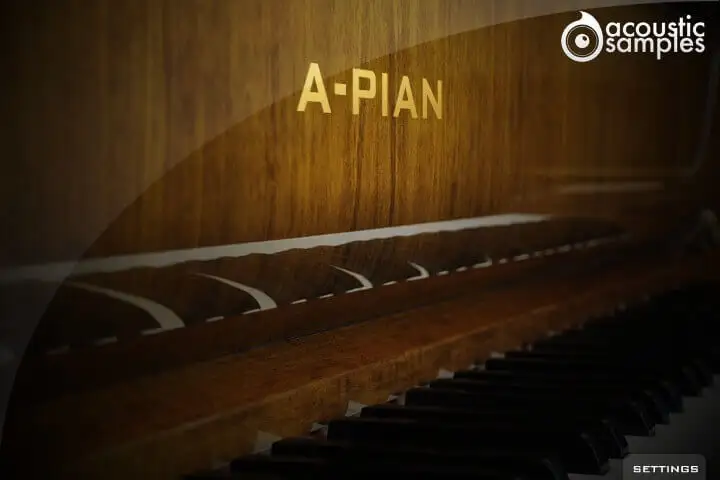
This is the default interface of the plugin. We adjusted all of the parameters the best possible way. If you want to adjust something, simply click on settings.
Mixing settings
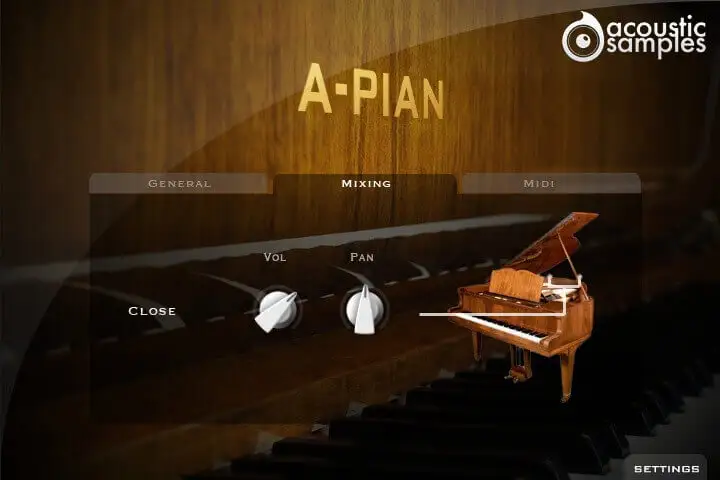
On the A-Pian, the Mixing settings are only a control over the volume and pan of the library.
General settings
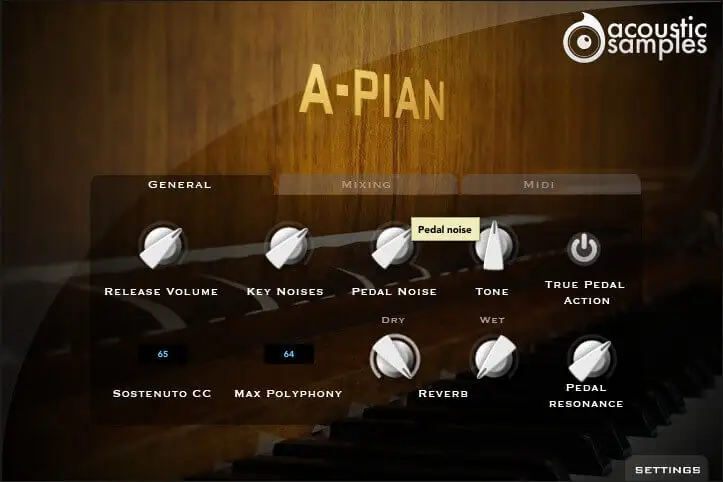
In this panel, you can change most of the aspects of the library to make it sound just like you want.
More about this
You can adjust:
- The release Volume: the sound produced when you release a key if a note was going on.
- The Key Noises: the sound produced when you release a key and no corresponding sustain was played.
- The Pedal Noise: the sound produced when you press or release the pedal, it adds a lot to the realism.
- The Tone: a simple way to make the piano sound brighter or darker.
- The True pedal action, it is a feature that allows you to play a chord without the pedal and then hear the resonance of the whole piano when you press the pedal (without releasing the keys).
- The sostenuto CC, also called the middle pedal. You can sustain selected notes, while other notes remain unaffected.
- The polyphony. If you lower the buffer or simply want to be light on CPU, then increase or lower this value.
- The Reverb. We use a convolution reverb and you can adjust the dry and wet parts separately.
- The Pedal Resonance. It is the amount of resonance during pedal down.
Midi settings
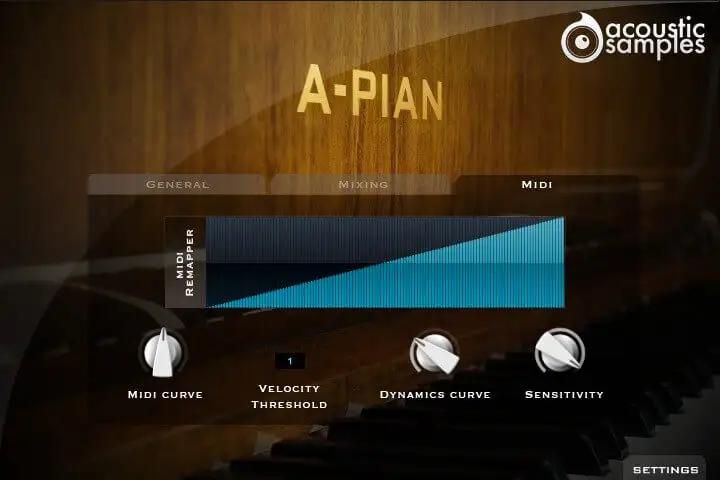
In the midi panel, you have access to all of the midi controls to help you adjust the library to your controller or playing style:
More about this
- The MIDI remapper allows you to assign any input velocity to any output velocity.
- The MIDI curve controls the midi remapper and will give it a concave or convex shape thus changing a "MIDI sensitivity".
- The Velocity Threshold is simply the minimum velocity that you will have to play to hear the piano, it is present on a real piano.
- The Dynamics curve changes the volume curve of the library.
- The Sensitivity will set the minimum volume for velocity 1 and give you access to all the dynamics that you want.
Technical specifications
Sample player
A-PIAN plays in UVI Player (formerly UVI Workstation), UVI's free sample player. We provide it with every library you buy, so you don't need an expensive sampler to use our products. It works on Mac (macOS 10.14 or later, Intel or Apple silicon) and Windows (10 or later), standalone or as a plug-in (VST / VST3 / AU / AAX), in 64-bit only. More about it here.
Copy protection
We use the iLok system to protect our products and you can choose to register your license to your computer or to an iLok dongle. If you decide to use an iLok dongle, both V1 and V2 are compatible with our products. You can activate your license on up to 3 computers or iLok dongles at the same time and you can deactivate one and activate another as many times as you want.